Updates
All WebUnlimited and AgniTEK invoices are emailed from QuickBooks Online and paid through the link in that email. There is no separate payment portal. A little setup on your end can make paying even easier.
ELECTRONIC PAYMENTS
All payments are made through the link in your QuickBooks Online invoice email, using one of the many electronic means available (credit card, debit card, e-check (ACH), PayPal, Venmo). Thank you for your assistance in this matter.
Payments
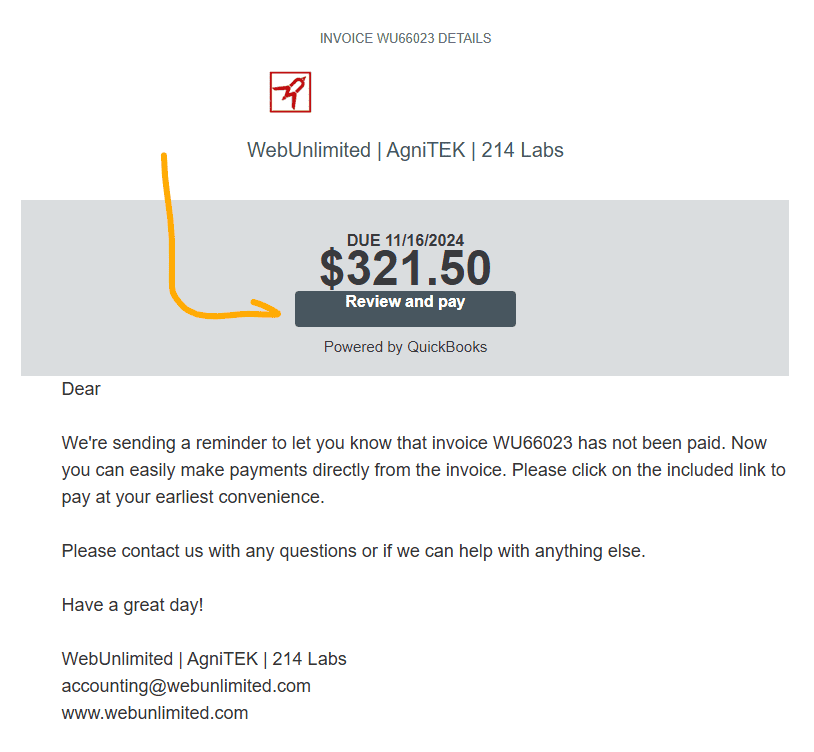
Now you can make payments directly from the emailed invoice. Just locate the invoice email and click on the Review and Pay button inside the email.
From the payment page, you’ll need to sign-in or quickly create an account to save your payment information.
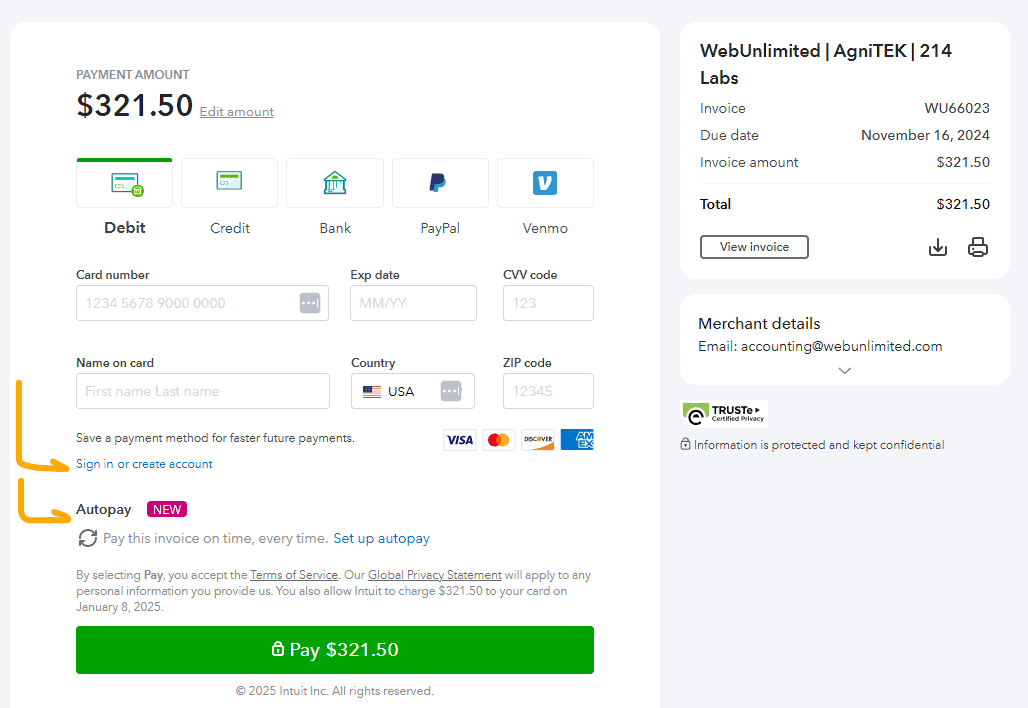
If you are NOT seeing all of these payment options, please contact us. These settings have to be enabled individually per client, so it’s possible that we missed a few checkboxes on your setup. Bank transfers (ACH) save us on transactions fees.

AUTOPAY
Here is the information from QuickBooks Support on setting up Autopay.
Look for the Autopay section under the “Name on card” field…
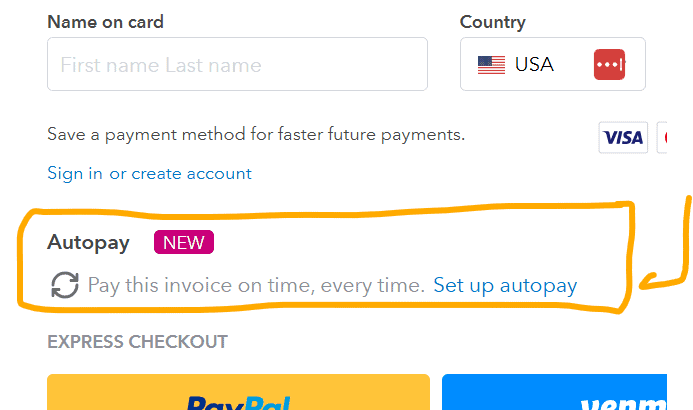
| Your customers will keep getting their invoice email as usual, and now they can set up Autopay. To do this, they need an Intuit account. If they don’t have one, they should create a new login.
To setup Autopay:
You can run through the details from this article to gain a deeper understanding of the process: Set up Autopay for recurring invoices in QuickBooks Online. The same link will guide you on how to check the autopay status of your customer. |
|---|
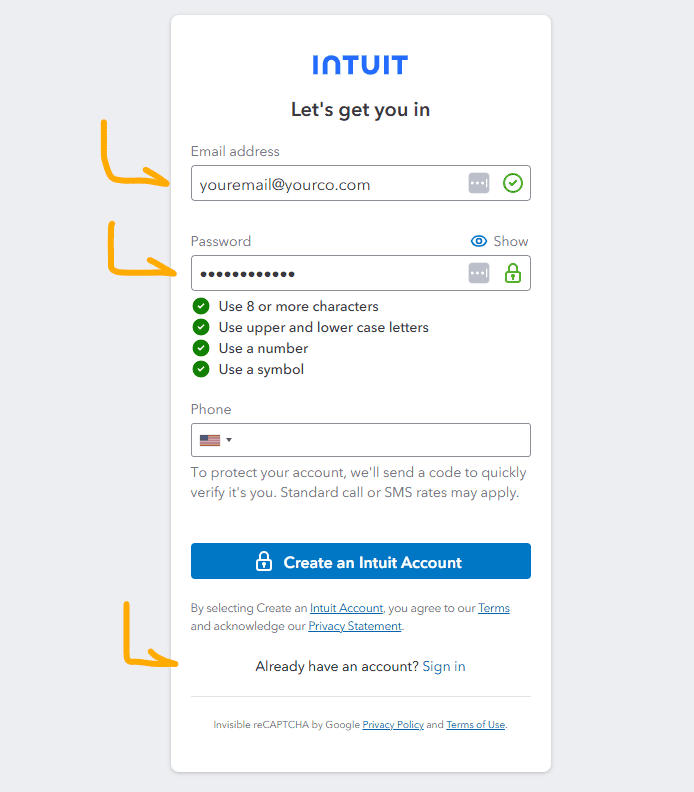
All it needs is a name and email, phone is optional. If you already have an Intuit account, you can just log into that one from the link at the bottom.